A required step for every Adjustment is the "Select Inventory" process. The Select Inventory process is the selecting of inventory to adjust. From the "Inventory Adjustment", select "Select Inventory to Adjust".
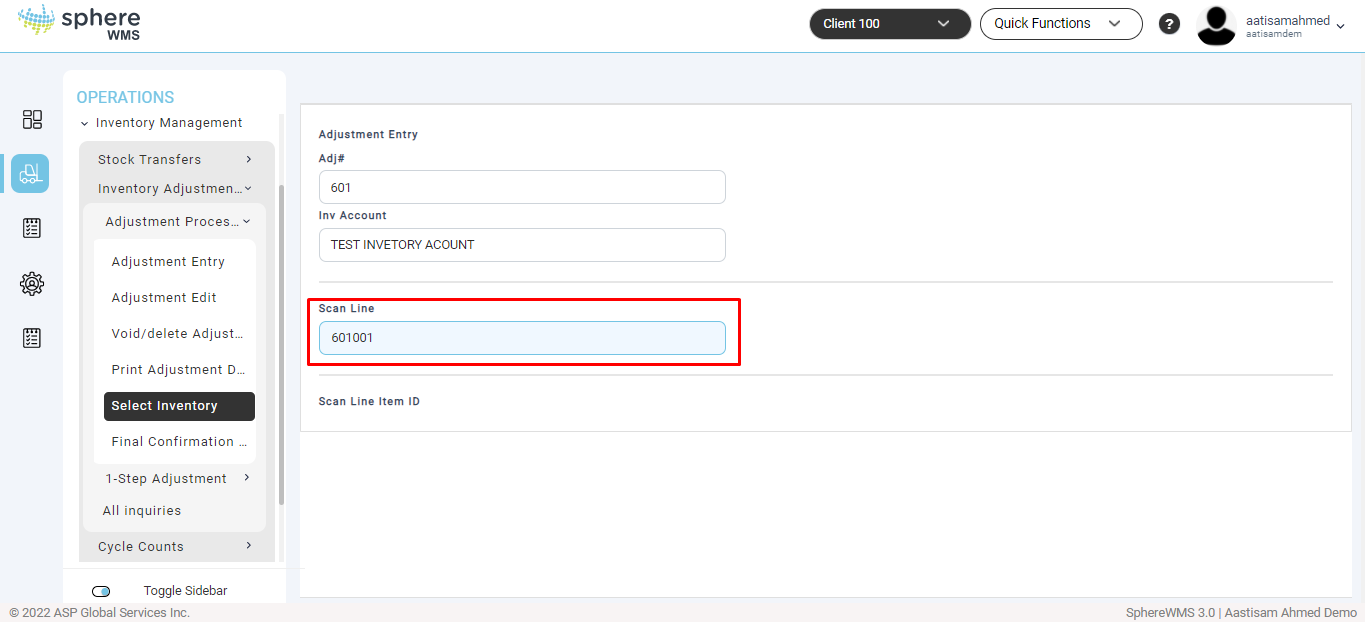
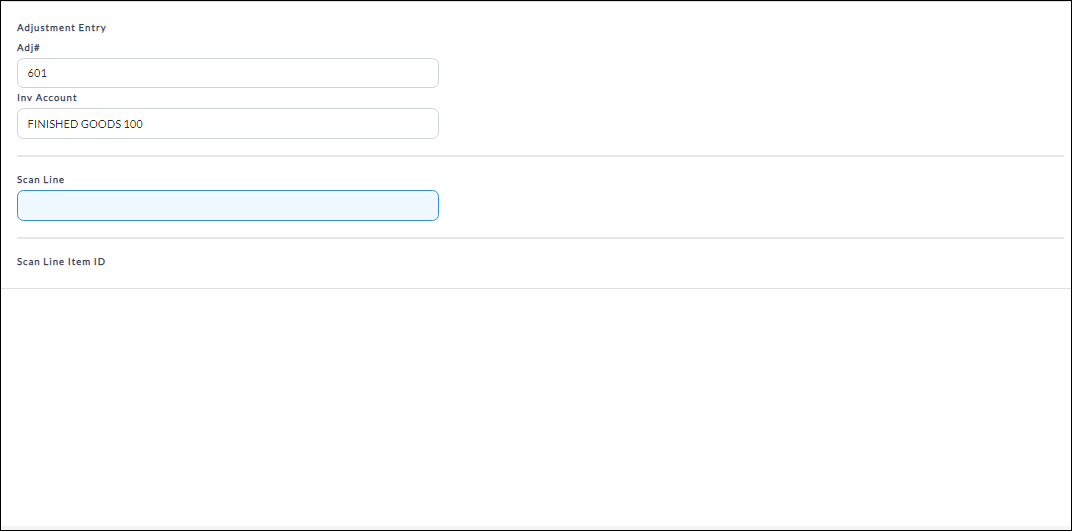
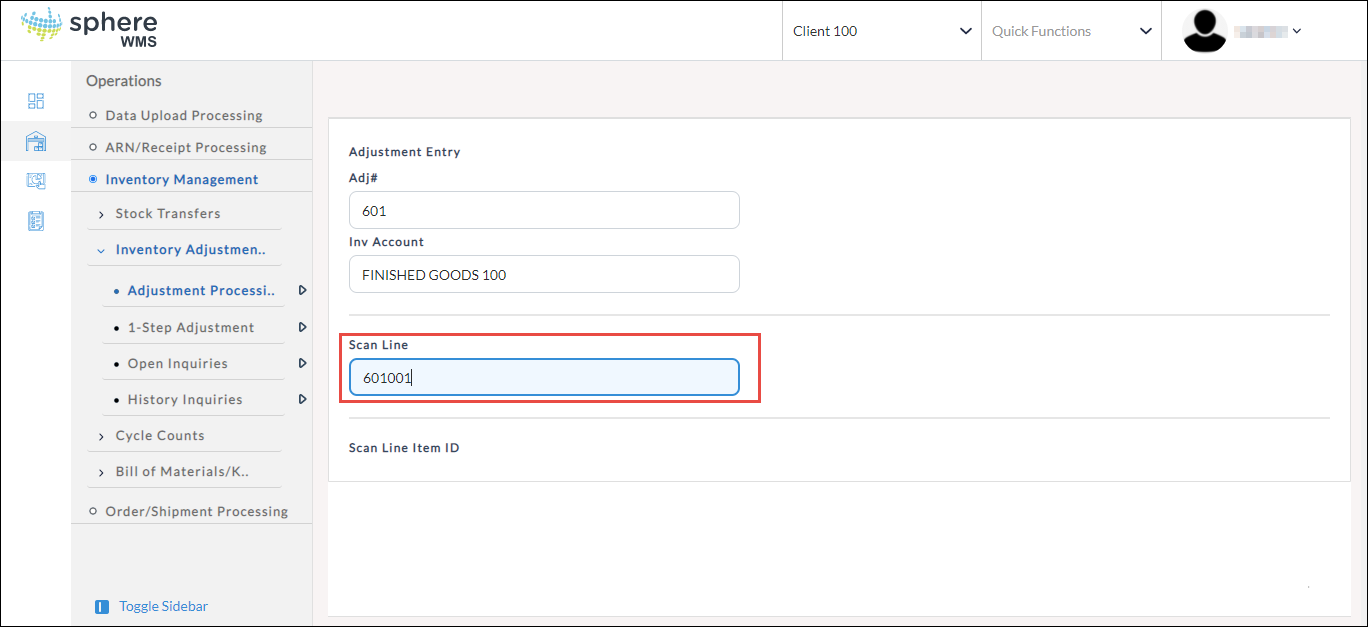
The user inputs the Inventory Adjustment Reference Number, followed by the "Scan Line". The Line ID is in the format "xxxxxxYYY" where "xxxxxx" is the Adjustment Number and "YYY" is the line number.
After entering the Line ID, the system will display an inquiry of current inventory that matches the Adjustment's Inventory Account and Product Code. Select the inventory item that is to be adjusted.
After the inventory item is selected, the Quantity to Adjust is requested and may be entered as a negative or positive value.
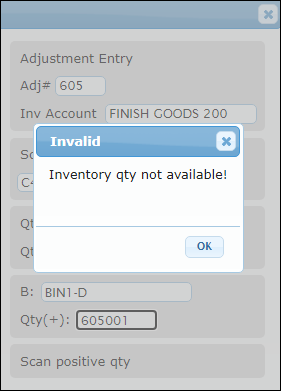
The system verifies whether the adjustment is allowed. If the selected inventory and its quantity requested is not available for adjustment, an error message displays.
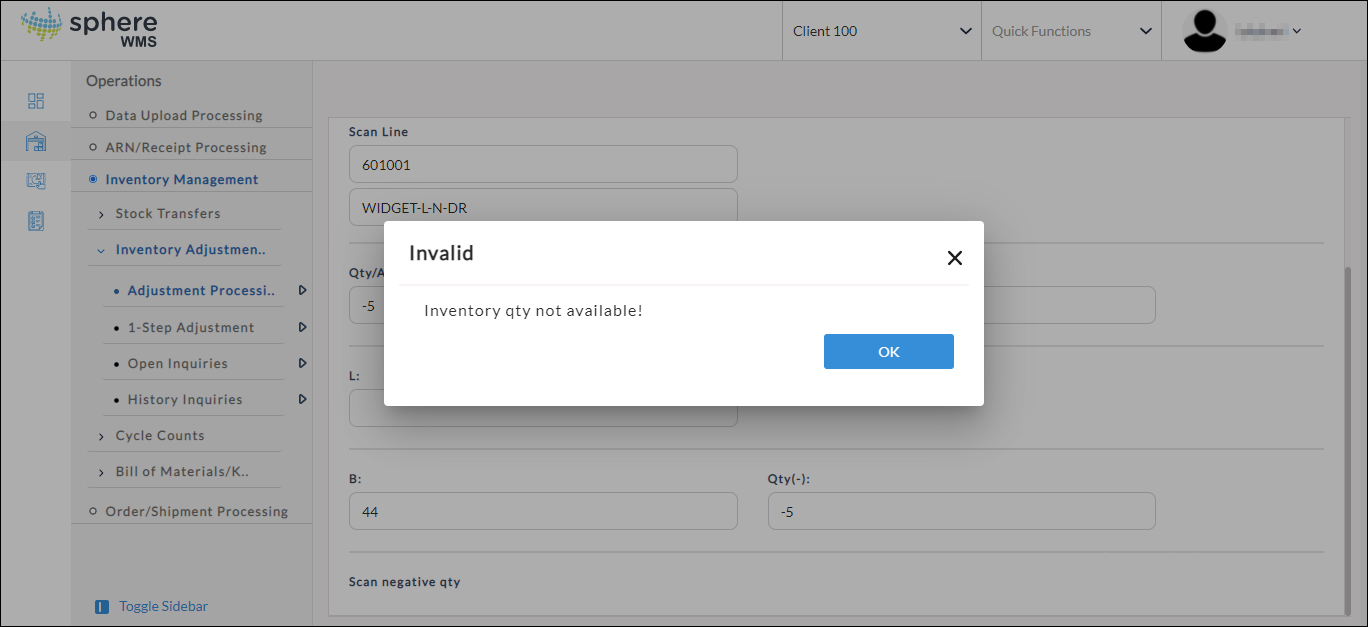
If the selected inventory is available, the system adds the inventory to the adjustment and updates the "Qty /Acc" (Qty Accumulated). As the Select Inventory process is conducted for each line item, this "Qty/Acc" is recalculated.
Qty/Adj (Quantity to Adjust) and Qty/Acc (Quantity Accumulated) must match before the Inventory Adjustment may be posted.
Exiting Select Inventory
To exit an inventory selection screen, press ESC to move up one field at a time. Pressing ESC at the "Adj Ref#" question exits the Inventory Selection Entry Screen and returns the user to the menu.
View/Delete Adjustment Inventory Detail
Any time after the user has entered the Adj Ref# in the Select Inventory screen, the F5 Function Key may be selected to print an Inventory Adjustment Progress Report.
Any time after the user has entered the Adj Ref# and the Scan Line, the F4 Function Key may be selected to display an Inventory Adjustment Detail Inquiry.
If the user needs to remove any of the Adjustment Detail entries, the delete functionality can be found in the F4 Inquiry. Double-click a record and a screen with the Adjustment Detail's information displays. To delete the entry, at "DELETE?" select ‘Y' (Yes) otherwise select ‘N' (No). If "Y" is selected, the user will be asked again, "Are you sure?" before conducting the deletion.
Press ESC to exit the F4 Function Key Inquiry.
Attachments:
 adjustment entry.png (image/png)
 adj select inventory.png (image/png)
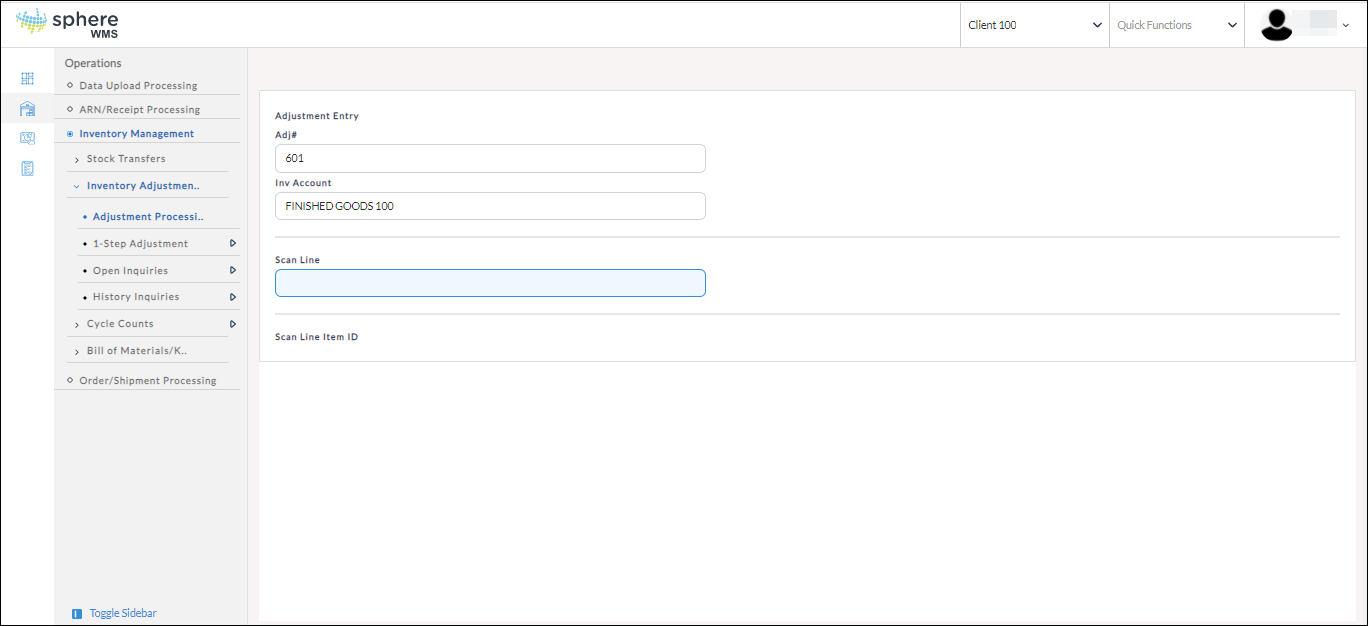 image-20200701-011230.png (image/png)
 select-inventory-2.png (image/png)
 select-inventory-3.png (image/png)
 image-20220210-111947.png (image/png)
